Dealing with incorrect or conflicting data


Dealing with incorrect information in the import or that which conflicts with other data
Now that we have imported some data for our job, we will import a new file with some (intentional) problems to deal with. These will include:
We shall construct a special import CSV file which will display these problems. So let's first have a look at some of the data in the file that we intend to import and go through the problems that we expect to happen. As a recap, this is the data we have already imported:
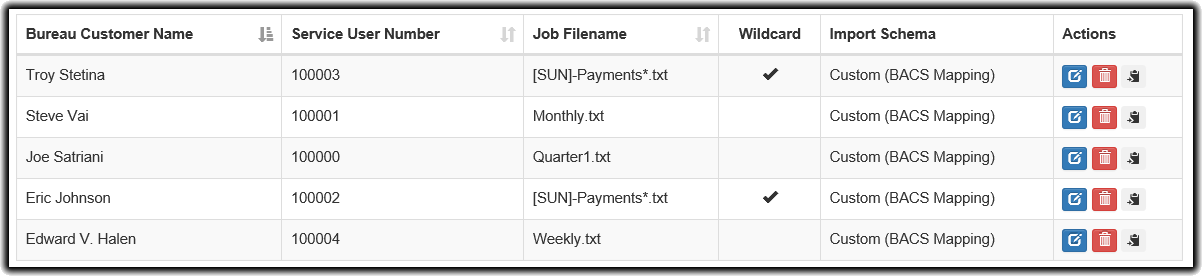
This is a sample of the CSV file that we will import:

There are a few problems that we expect to happen when importing this data.
When we import our file, we will see the following problems noted which will match as outlined above. paygate contains a number of devices that you can use to resolve these data conflicts prior to importing. We will go through each issue to enable a successful import.
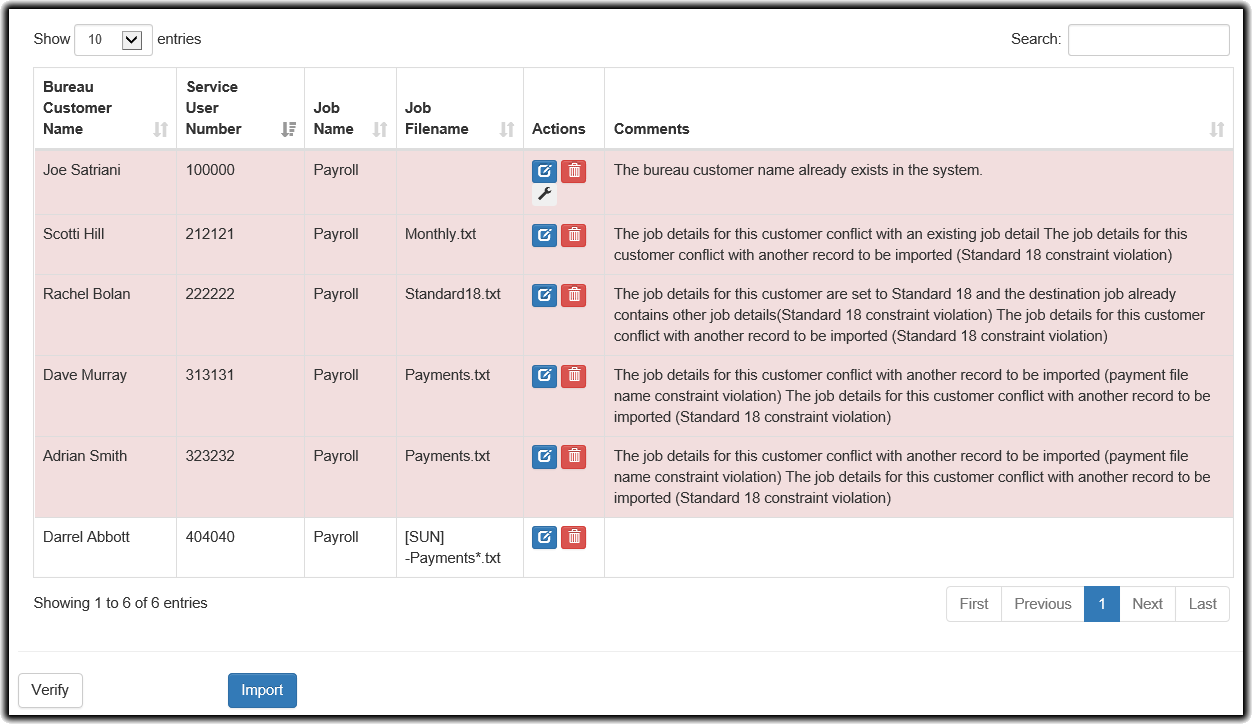
The text in the comments will hopefully give a run-down of the problems with each imported Bureau Customer. Let's begin resolving them one-by-one.
Joe Satriani:
We begin here as Joe Satriani already exists in the system. Clicking on the  spanner icon will display the conflicts resolution box where we can begin to go through the issue. Below is a typical screenshot which has been slightly shortened for brevity.
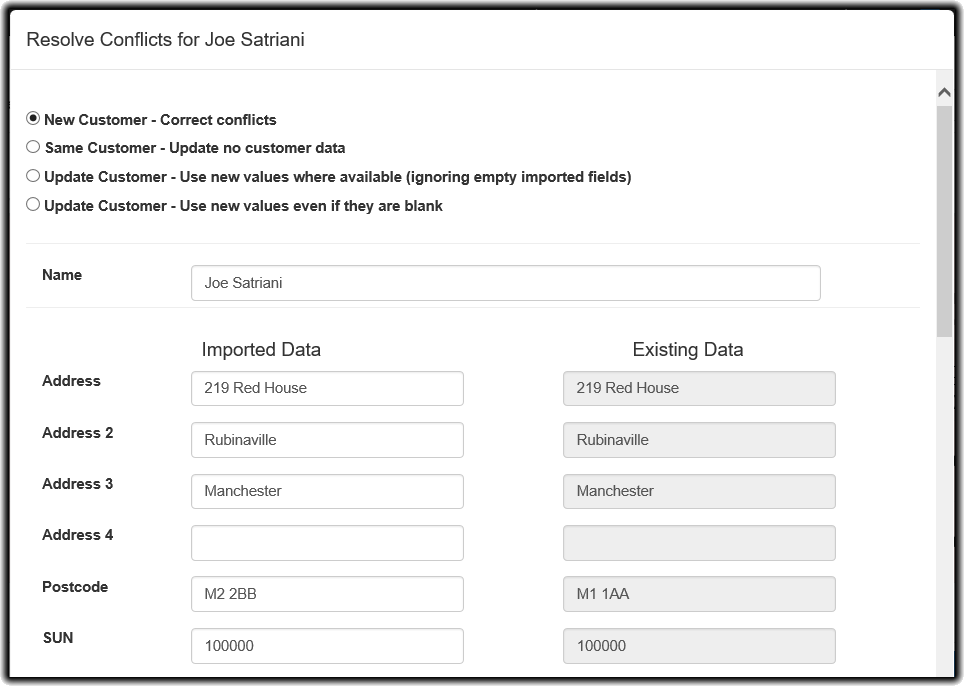
At the top we have a number of options in which we can deal with the new data we have imported. We are also shown a comparison of the data that the imported bureau customer has matched with. paygate uses the Bureau Customer Name as its unique way of identifying Bureau Customers. However let's go through the options presented to us:
 delete button will simply remove the data from the import.
On this occasion, we will select the third option, Update Customer - Use new values where available ignoring empty imported fields and see what has now changed.
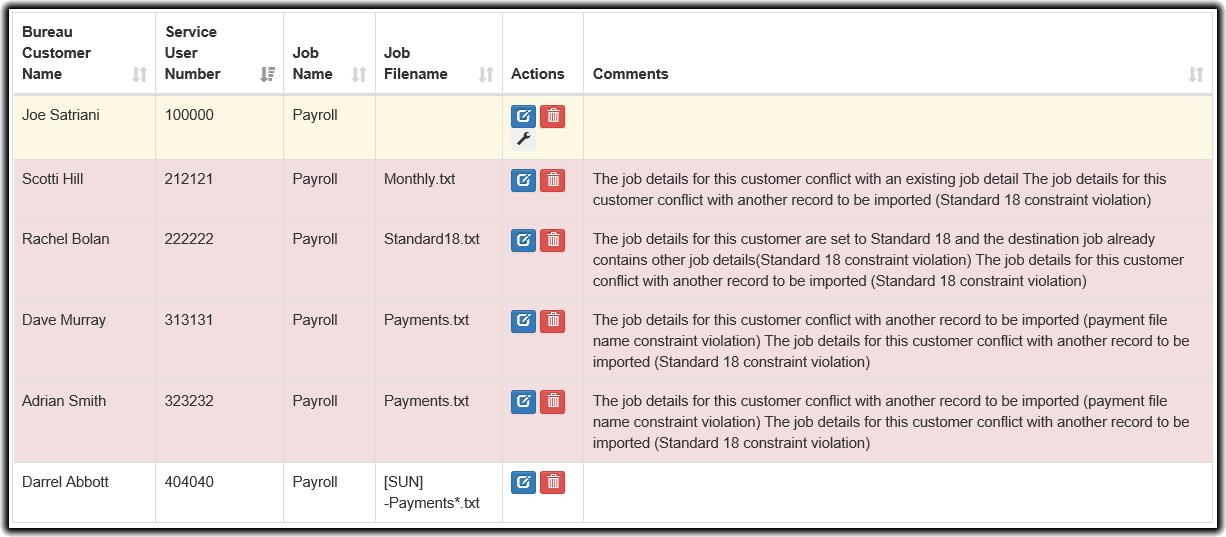
Now, Joe Satriani has no more conflicts. We expect that the new PostCode we have used on the import to be updated in the bureau customer record. The line in the table has now turned yellow to indicate that this data has had a conflict but it is now resolved. This enables you to further manage the conflict or edit the data if required.
Scotti Hill
This data contains the text "The job details for this customer conflict with an existing job detail." This indicates that another job detail in our job already contains the filename Monthly.txt. And it does; from the screenshot above, we can see that Steve Vai already has a filename called Monthly.txt. Hence we will need to edit our import data to use an alternative filename. Let's do this now; we can change Scotti Hill's payment filename to Monthly2.txt by hitting the  edit button under the Actions column. The resulting dialog box shows all the data for this record to be imported. When we scroll to the bottom of the dialog, we can see the job information that we need to alter.
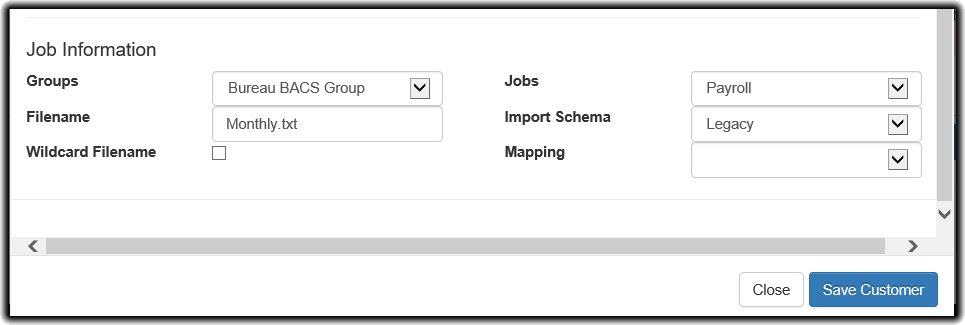
Now all we need to do is change the filename to Monthly2.txt and hit the  button
When we return the the main screen, we now see this:
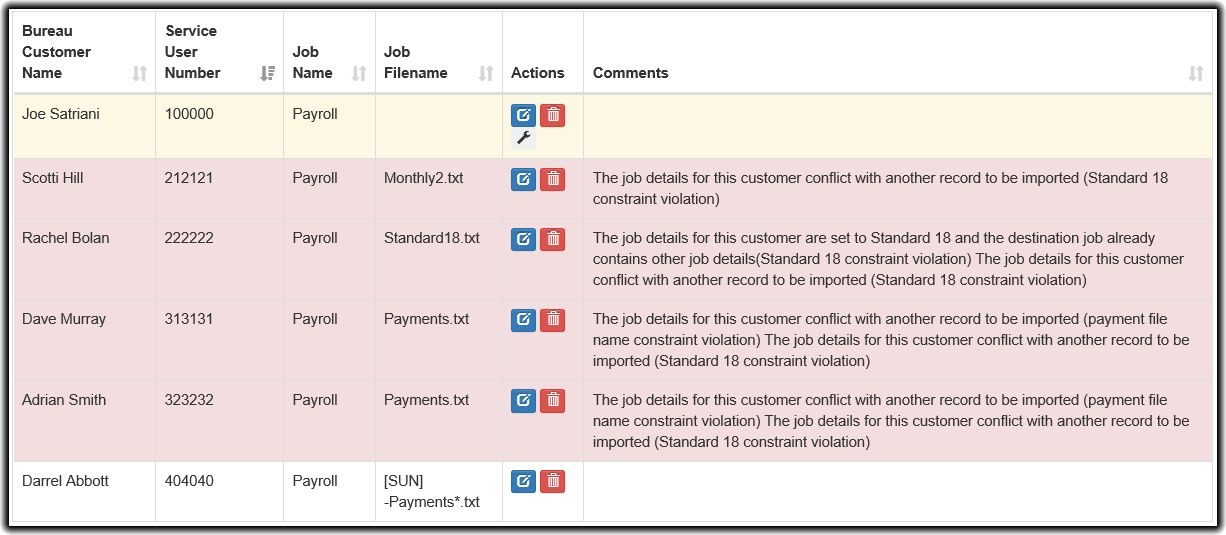
It appears that Scotti Hill still contains a conflict however it is not an issue with this actual record. As we can see, all the jobs contain the text
The job details for this customer conflict with another record to be imported (Standard 18 constraint violation)
This means that there is another job detail contained in the import which is attempting to import a payment file using the Standard 18 Import Schema. This is not permitted in paygate. Indeed, Rachel Bolan contains the file with the Standard 18 file import schema. We can either alter the import schema of Rachel Bolan to use another format by editing the data, or we can simply remove it. Here we will decide that Rachel Bolan must use a Standard 18 import schema and hence will require placing in their own Bureau Job. So in this instance, we will simply remove Rachel Bolan from the import and make a new Bureau Job later on. We can do this using the  delete button.
You will then see a confirmation dialog asking if you are sure you want to remove this from the import.
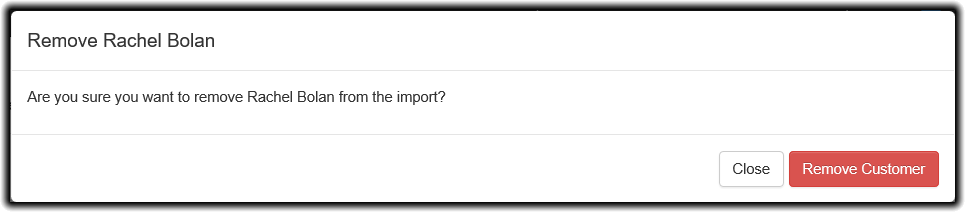
Note, had we removed Joe Satriani from the import as the record was conflicting with pre-existing data, this would have removed the data from the import only. It would not have affected the existing data withing paygate at all! This leaves us with the following final errors.
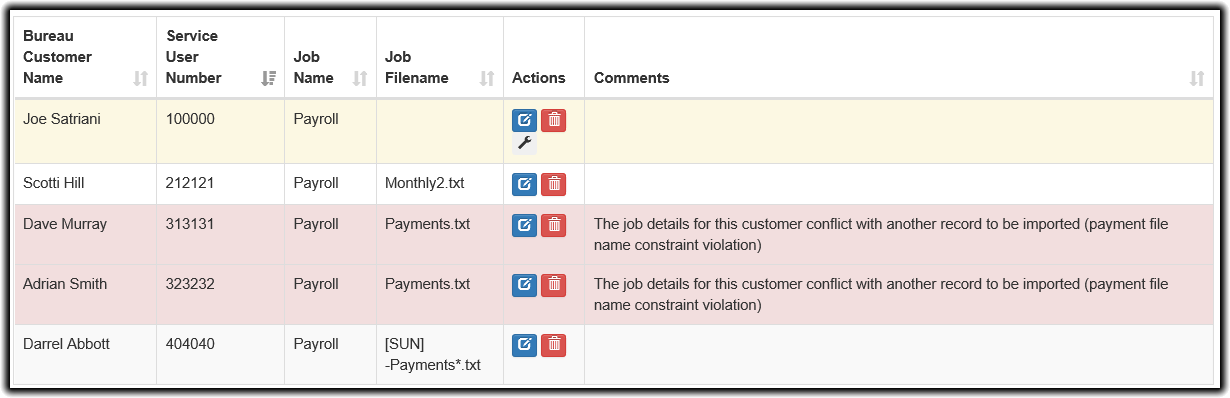
As you can see, Dave Murray and Adrian Smith both have conflicts. It appears that they both share the same payment file name. In this case, let's change the filename and turn them into wildcard filenames. We have clicked on the edit button on one of the records and made the changes below:
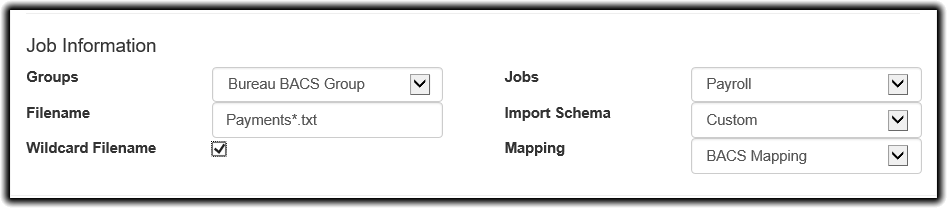
Here, we have added the * wildcard to the filename and enabled the Wildcard Filename tickbox. When we click save, we see the following:
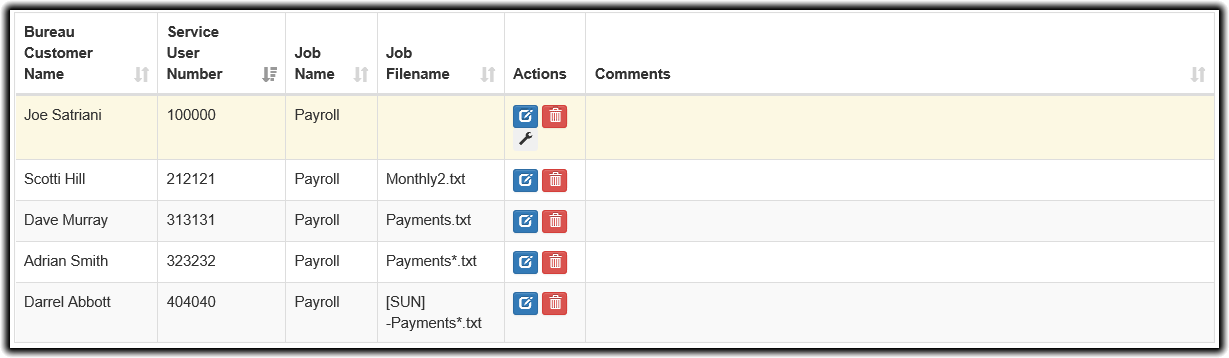
paygate now reports no further issues. However this is technically not true; while Dave Murray and Adrian Smith no longer conflict with each other, we should make the same amendments to Dave Murray's payment file.
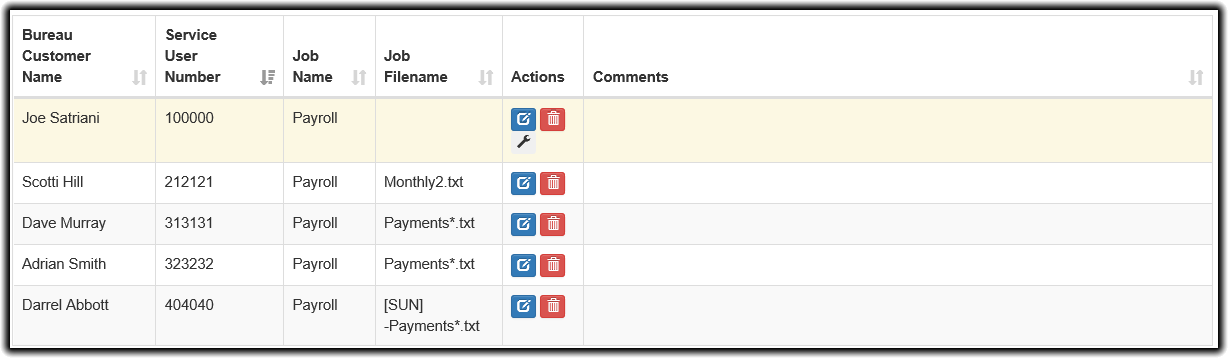
Now that this has been completed, we now have a valid import.
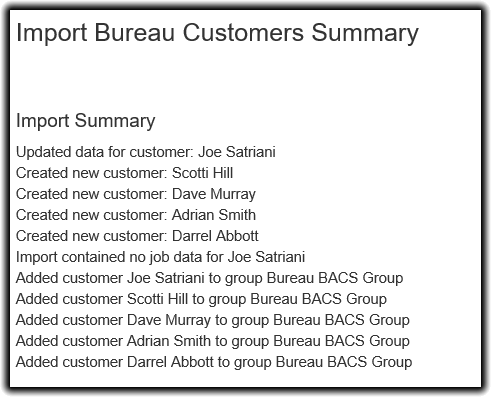
The Import summary correctly shows that it has created four new customers, that Joe Satriani had no job data to import and that all new Bureau Customers were added to the Bureau BACS Group (if they were not already).