Bureau Job Configuration Report


The Bureau Job Configuration Report offers a granular method of seeing how your existing jobs are configured in paygate.
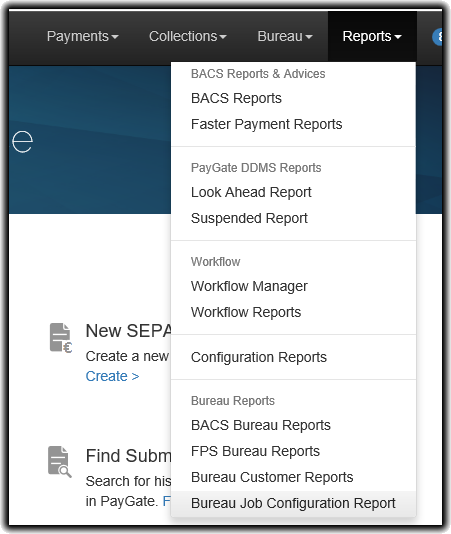
It is accessible from the Reports menu:
When the screen appears, it will first display a list of groups. The report can be run from almost any perspective.
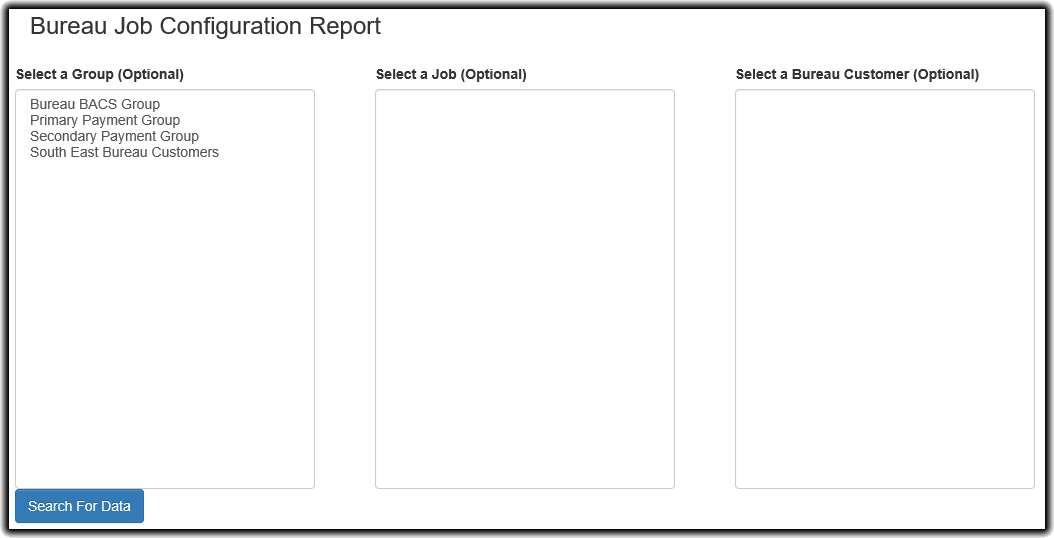
If you want to know every part of your configuration, simply leave all the selections blank and hit Search For Data.
If you want to drill down any further, select the relevant groups that you are interested in. You can hold down Ctrl as you select options to select multiple options, or you can use the Shift key to select ranges of options. Here, we decide that we want to select Primary Payment Group and Secondary Payment Group.
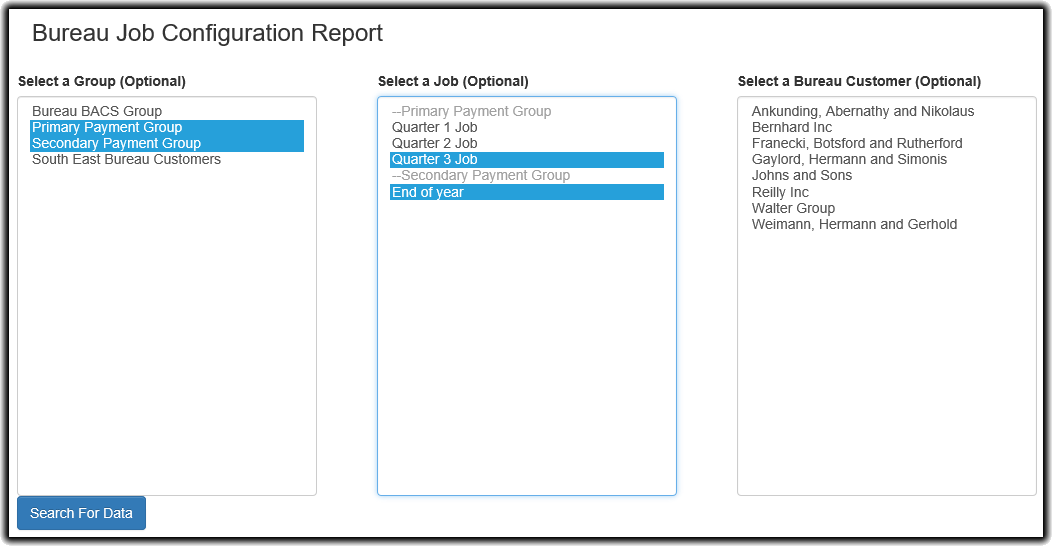
Furthermore, we are interested in the configurations of the Quarter 3 Job and the End of year jobs as displayed. The Select a Bureau Customer list box will automatically update with any Bureau Customers available from the options you have selected. For example, if we had only selected groups, we would see all jobs and bureau customers under that group.
You can search for the data at any point. You can even leave all Select a Job options deselected and select only those Bureau Customers that you are interested in. paygate will determine what data is available dependent on your selections and display them when you have hit the Search For Data button.
The below grid is what is seen from the selections above:
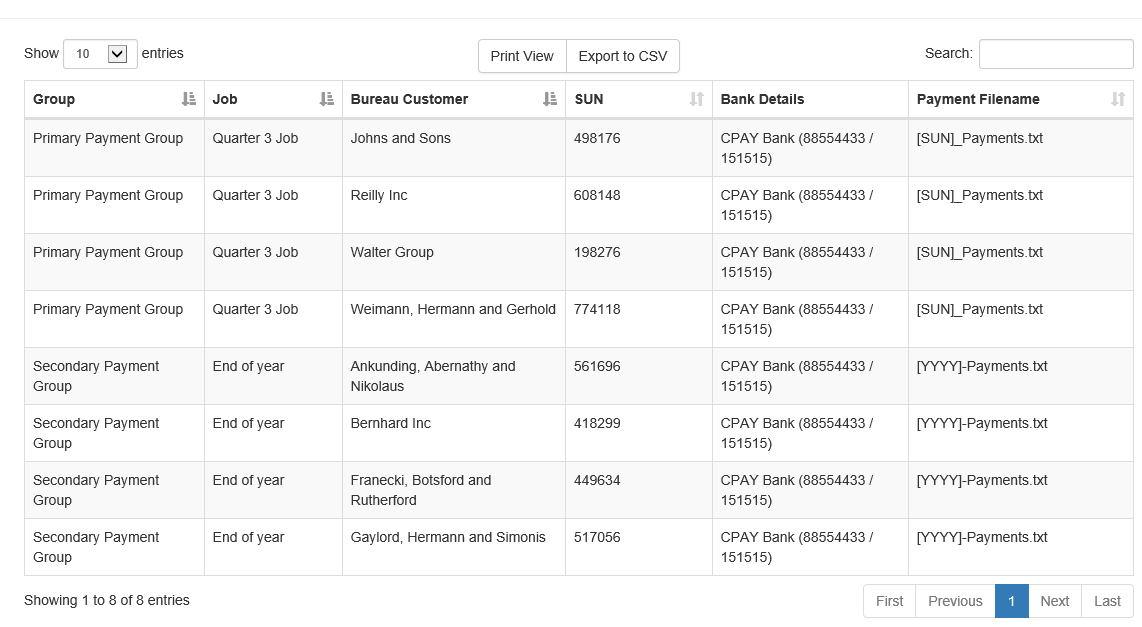
The grid can be manipulated in most standard ways, either by changing the sort orders or searching for something specific. There are also two buttons at the top of the grid.
Print View generates a print-ready view. This may be easier to view for some, or can be printed from your printer.
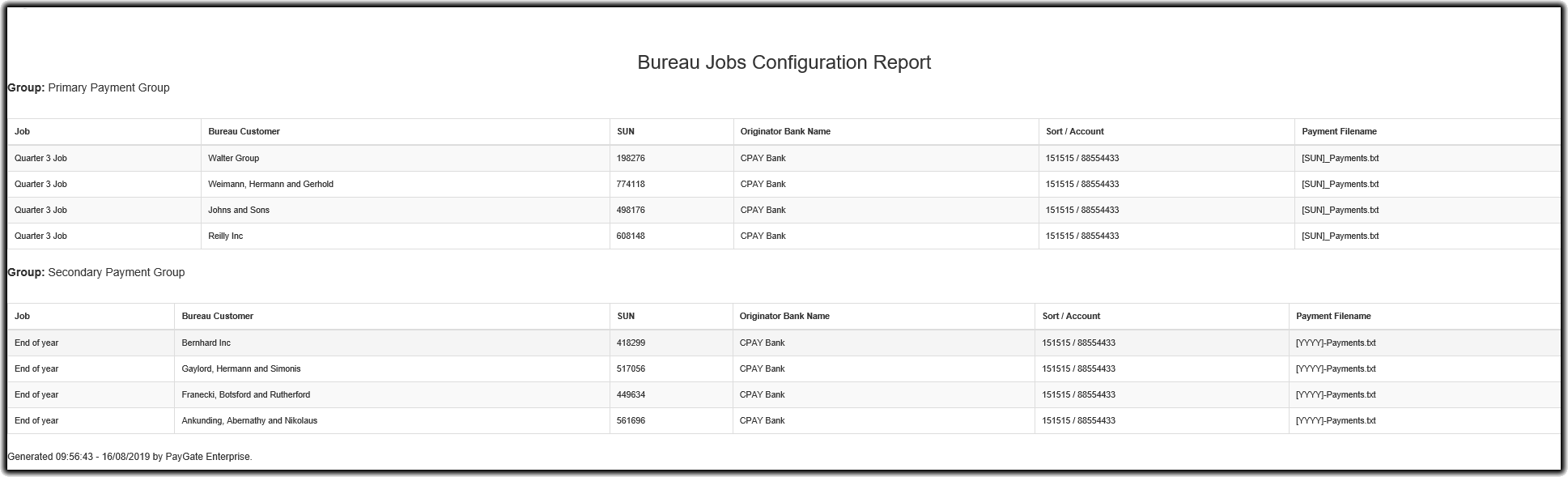
Export to CSV generates a CSV file of the displayed data for use in other applications.
Note that the grid sort orders or entries in the Search box on the grid do not affect the output of either print view or CSV.